Free for macOS, Windows and Linux

See and control everything your AI agents can do.

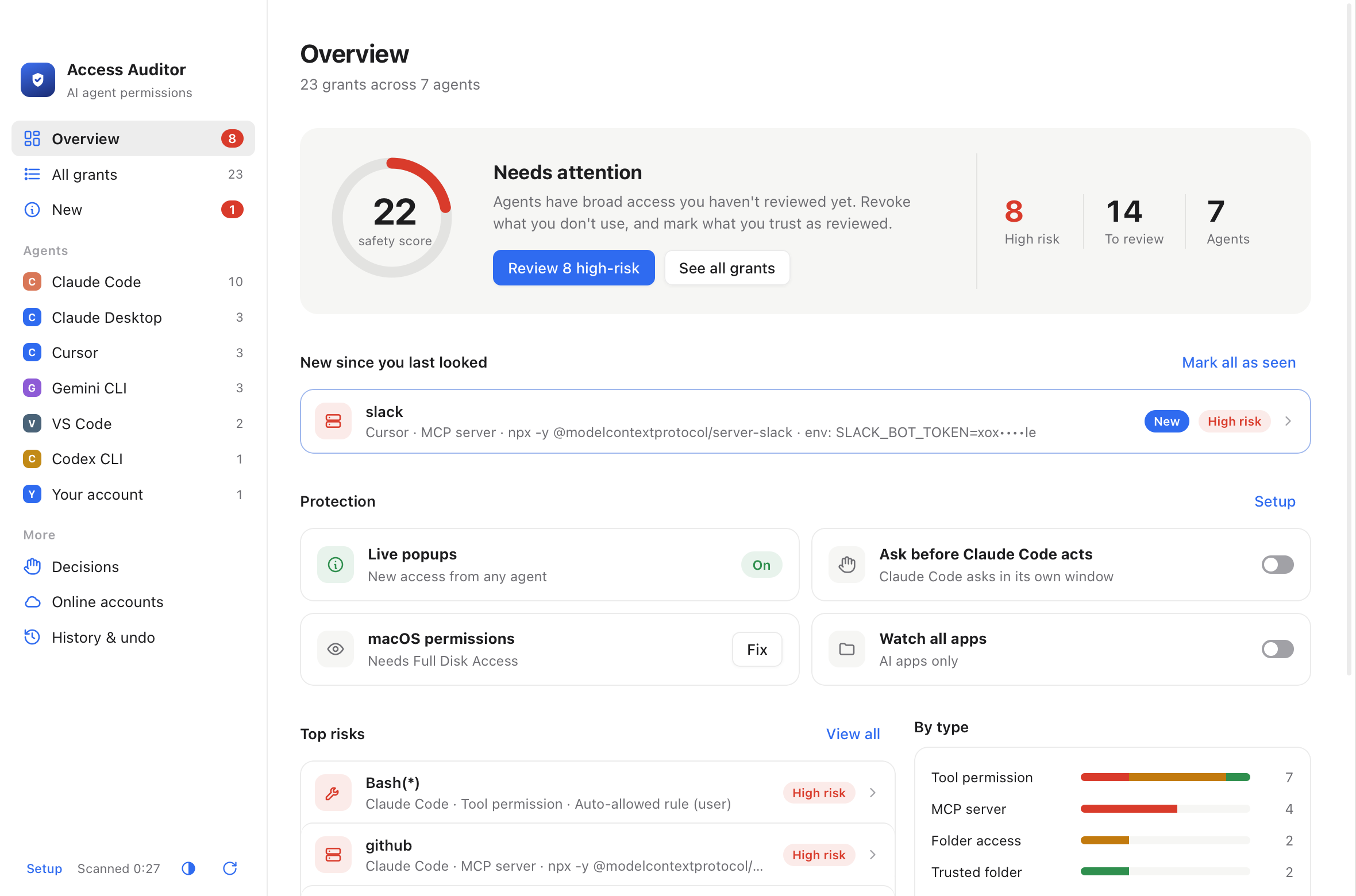
AI Access Auditor finds every permission, folder, login and privilege your AI agents have, pops up the moment that changes, and lets you take any of it back with one click.

macOS 13 Ventura or later · Windows 10 and 11 · Linux: Ubuntu 22.04, Debian 12 or later, and similar · Nothing else to install

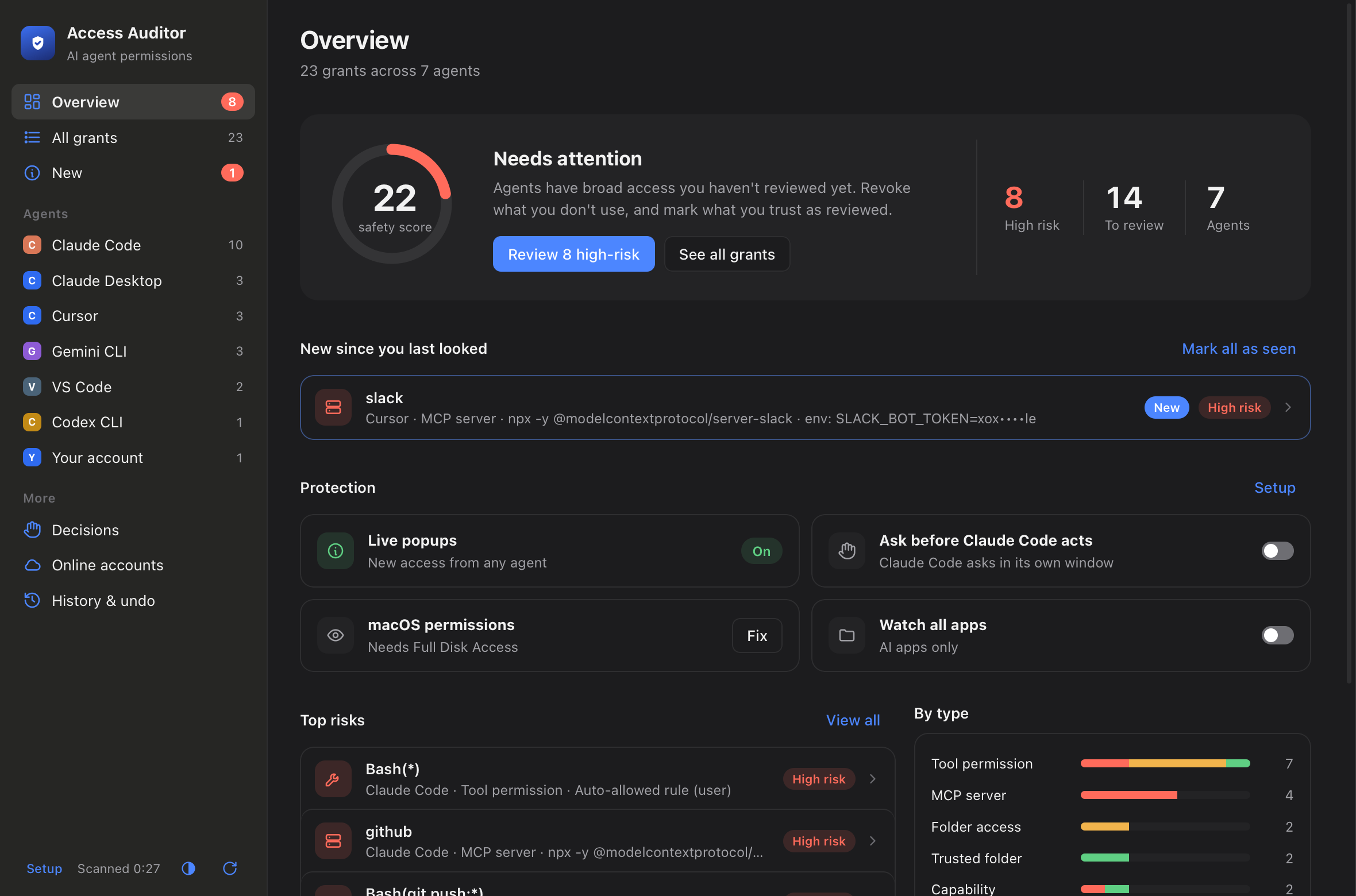
AI Access Auditor overview: a safety score, high-risk grants, new access and protection status AI Access Auditor overview in dark mode

Checks the agents you already use

Claude CodeClaude DesktopCodex CLIGemini CLICursorGitHub CopilotWindsurfClineRoo CodeOpenCodeAiderGooseAmazon QKiroContinueZed

Why it exists

You clicked "Allow" a hundred times. Do you know what you allowed?

AI agents collect access quietly: an "always allow" here, a trusted folder there, an MCP server with your GitHub token, a terminal running in YOLO mode. AI Access Auditor puts all of it in one place.

Finds every grant

Tool permissions, trusted folders, MCP servers, agent skills, AI tools being installed, saved logins, browser and editor extensions, background jobs and macOS privacy permissions.

Pops up the moment it changes

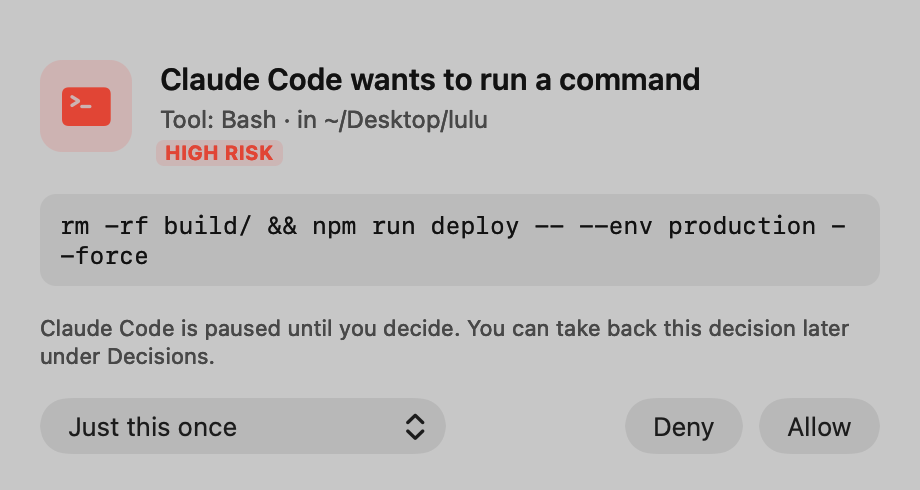
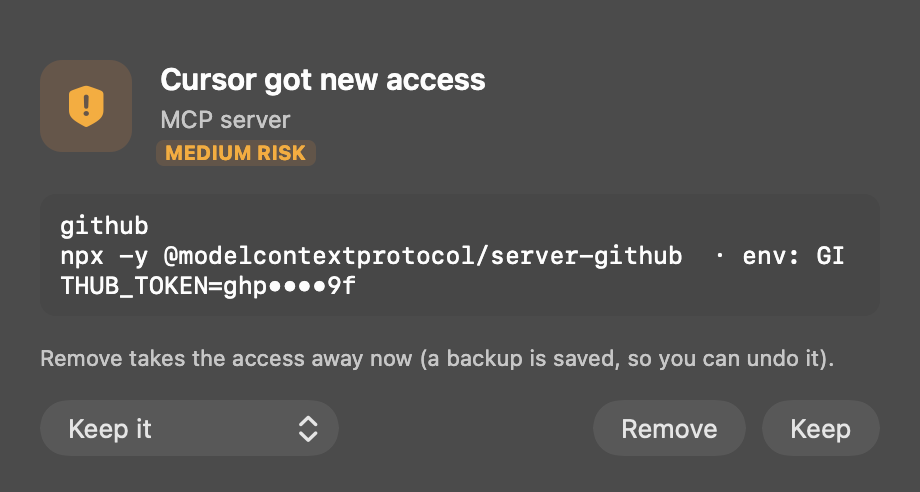
When any agent gains new access, a window asks you to keep it or remove it, within seconds.

Ask before Claude, Codex and Gemini act

Approve or deny commands and file changes from Claude Code, Codex CLI and Gemini CLI in one native popup, even when they run in "YOLO" mode.

Catches agents running with safety off

Spots agents started with --yolo, --dangerously-skip-permissions and similar flags, or running as root, and stops them if you ask.

One-click revoke, with undo

Every change is backed up first. Restore anything from History at any time.

Access that expires

Allow a folder or tool for an hour, a day or a week. It's removed automatically when the time is up.

Sees data leaving your Mac

If a script or tool an agent started sends data out, or any app uploads a lot, you see where it's going and which files it has open. Stop it or allow it.

Catches AI tools as they install

When a new AI agent, MCP server, skill or plugin is set up, by you or by an agent, it tells you what it is, what it's connecting to, and offers to put it behind Allow / Deny.

Checks agent skills

Lists the skills your agents load on their own, and flags the ones that bring scripts or reverse-engineering tools. Remove one with a click.

Live protection

Like a firewall prompt, but for AI access.

A small shield lives in your menu bar. It watches your agents' settings and running processes in the background and asks you the moment something changes.

  • Allow just once, or always. Then change your mind later under Decisions.
  • Safe by default. For high-risk requests, pressing Return means Deny.
  • Never stuck. If the app isn't running, your agent asks you the usual way.
  • Sees data leaving your Mac. If a script or tool an agent started sends data out, or any app uploads a lot, you're asked to allow it or stop it.
Popup: Claude Code wants to run a command, with Allow and Deny Popup: Cursor got new access to an MCP server, with Keep and Remove

Plain language

Know what each permission actually means.

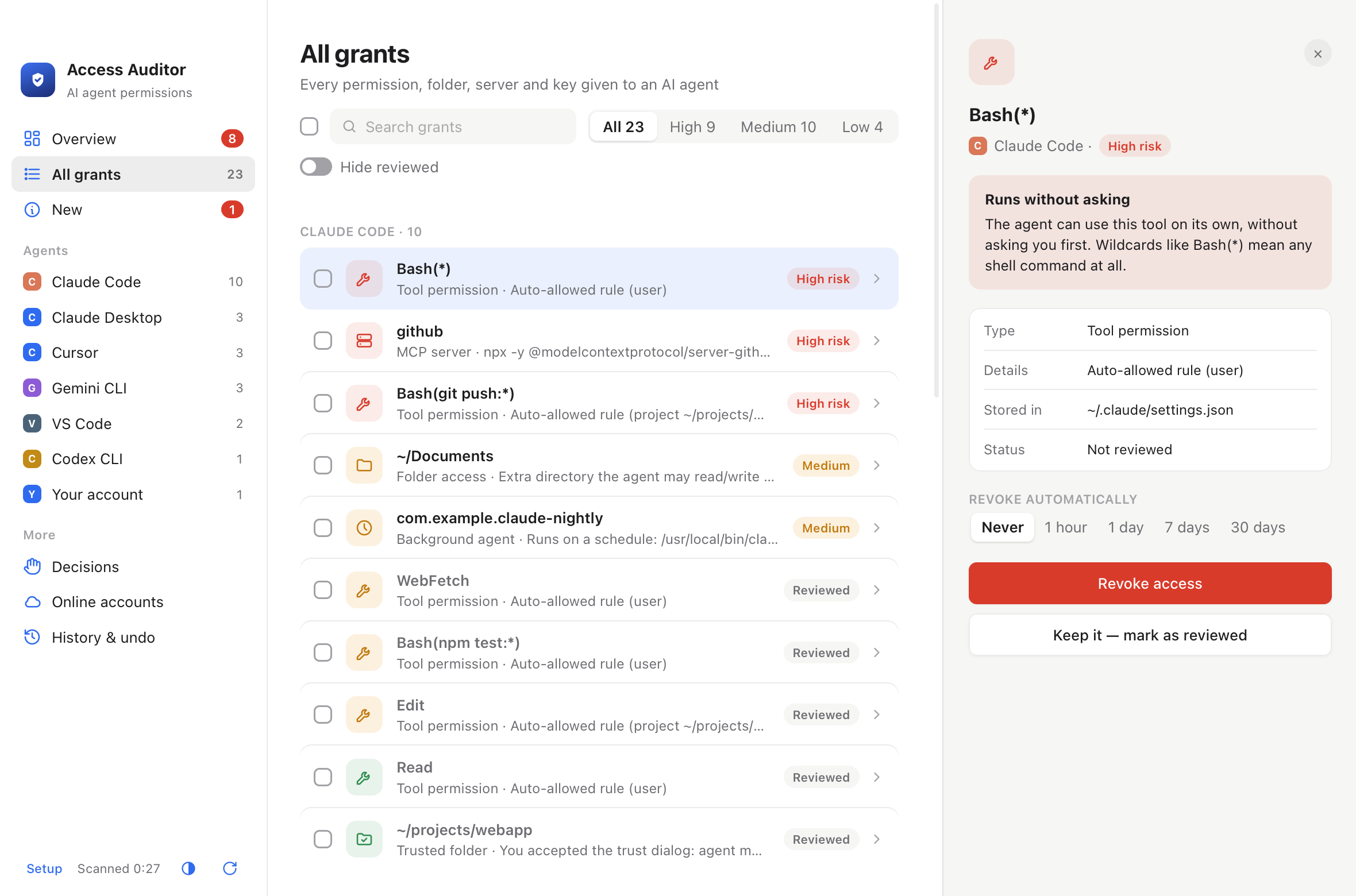
Every grant comes with a risk level and a one-line explanation, like "the agent can run any shell command without asking", so you can decide in seconds.

  • Revoke several at once and confirm once.
  • Mark what you trust as reviewed to see only what's new next time.
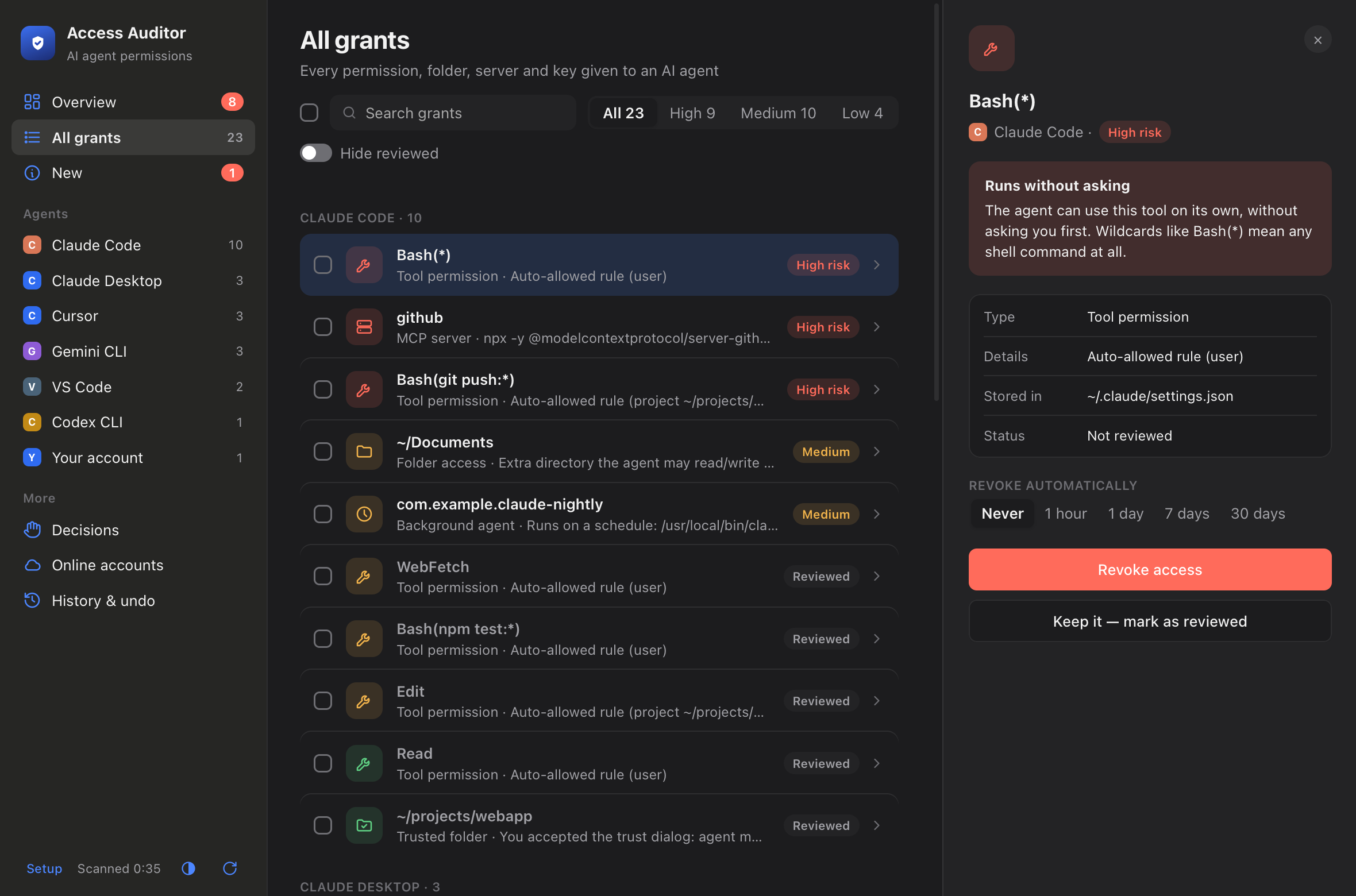
  • Light and dark mode, matched to your Mac or set by hand.
List of grants with a details panel explaining Bash(*) and buttons to revoke or keep itThe same list of grants in dark mode

How it’s different

Not just a report. A say in what happens.

Other tools look at AI agent setups too, mostly by scanning MCP server configs and listing problems. AI Access Auditor is built around four things they usually don’t do.

01

It asks before the agent acts

Most scannersTell you about risky settings after they’re already in place.

AI Access AuditorShows an Allow / Deny popup before Claude Code, Codex CLI or Gemini CLI acts, and offers it the moment a new agent is installed. Saved answers can be taken back later.

02

It looks beyond MCP

Most scannersFocus on MCP servers and their tool descriptions.

AI Access AuditorAlso checks macOS privacy permissions, background jobs, extensions, agents running with safety off, AI tools being installed, data leaving your Mac, and the access agents quietly get from your own logins: sudo, SSH keys, GitHub, AWS, gcloud and Kubernetes.

03

It fixes what it finds

Most scannersReport the issue and leave the fix to you.

AI Access AuditorRemoves, turns off or stops each item in one click, backs up the file first, and can undo it from History.

04

It speaks plain language

Most scannersAre written for security engineers, often run from the Terminal.

AI Access AuditorA desktop app for Mac, Windows and Linux with a safety score and a one-line explanation of every permission, so anyone can decide in seconds.

Privacy

It stays on your Mac. All of it.

A security tool shouldn't create a new risk. AI Access Auditor has no account and no tracking. The only thing it asks the internet is whether a new version is out, once a day, and you can turn that off.

Nothing uploaded

What it finds never leaves your Mac. It watches other apps' traffic using macOS's own counters, without reading what they send.

Secrets stay secret

Tokens are masked on screen. For Keychain items it reads only names, never the passwords.

Asks before changing

It never removes access on its own, except for time limits you set yourself.

Reversible

Every change is backed up first. Your data is in one folder you can delete.

Install

Up and running in a minute.

The Mac app is signed and notarized by Apple, so it opens like any other app.

Download and open the .dmg

Drag AI Access Auditor into the Applications folder.

Open it

Double-click the app in Applications. The first time, macOS checks that it's an app downloaded from the internet. Click Open.

Follow the welcome screen

It walks you through Full Disk Access, the Allow / Deny popups and Open at Login. You can change everything later.

Stay up to date

When a new version is out, the app tells you once, with a link to download it. Install it the same way, over the old one.

Coming from a beta? Install over it as usual. Because the app is now signed by its developer, macOS asks once more for Full Disk Access: turn it on again in the welcome screen.

On Windows

Download and run the installer

For most PCs: Windows (x64). For ARM PCs, such as Snapdragon laptops: Windows on ARM (not tested yet). It installs for your account only, without administrator rights.

If Windows warns you

The Windows version isn't signed yet, so Windows may say Windows protected your PC. Click More info, then Run anyway. Then follow the welcome screen.

On Windows, the app also checks startup entries, scheduled tasks and logins saved in Credential Manager. It doesn't watch uploads yet, because Windows only shows how much each program sends to administrators. Checksums: SHA256SUMS-windows.txt

On Linux

Ubuntu, Debian, Mint, Pop!_OS

Download the .deb for your computer: Intel or AMD (x64) or ARM (arm64). Then install it from the Terminal: sudo apt install ./AI-Access-Auditor-*.deb

Other distributions (x64)

Download the AppImage, make it executable and open it: chmod +x AI-Access-Auditor-*.AppImageOn Ubuntu 22.04 or later, AppImages also need libfuse2: sudo apt install libfuse2t64(on 22.04 the package is called libfuse2).

The tray icon: the app keeps watching after you close its window, from an icon in the top bar or taskbar. On GNOME desktops other than Ubuntu's, that icon needs the AppIndicator extension. Without it, open the app again from the app menu. Checksums: SHA256SUMS-linux.txt

FAQ

Questions

Is it free?

Yes. It's free to download and use.

Why does Windows warn me when I install it?

Windows programs need a paid code-signing certificate to install without a warning, and the Windows version doesn't have one yet. The steps under Install show how to run it. The Mac app is signed and notarized by Apple.

Which computers does it run on?

Macs with macOS 13 Ventura or later, Apple Silicon and Intel. Windows 10 and 11. On Linux: Ubuntu 22.04, Debian 12 or later and similar distributions, on x64 and ARM. Everything it needs is included, so there's nothing else to install.

Can it stop an agent before it does something?

For Claude Code, Codex CLI and Gemini CLI, yes. Turn on "Ask before it acts" for each one on the Overview, and you approve actions before they run. With Claude Code and Codex, the popup replaces the agent's own prompt. With Gemini, it steps in when Gemini would otherwise act without asking (YOLO or auto-edit mode). Codex asks you to trust the new hook once: type /hooks inside Codex. Other agents don't offer a way to be paused from outside, so for them you're alerted within seconds of any new access, and can remove it right away.

How is it different from MCP scanners?

MCP scanners such as Snyk Agent Scan look deeply at MCP servers, for example checking their tool descriptions for hidden instructions. AI Access Auditor doesn’t do that deep analysis. It covers the wider picture instead: every kind of access your agents have, a popup before Claude Code, Codex or Gemini acts, and one-click removal. The two work well side by side.

Can it block data from leaving my Mac?

It can stop the program that's sending it, and it asks you first. It can't block a single connection while letting the program run. That needs a network filter, like the free LuLu firewall, and the two work well together. It checks every 2 seconds, so a very short upload can slip past it, and it shows the IP address rather than a website name, because looking names up would mean contacting the internet.

Why does it want Full Disk Access?

Only to read macOS's list of which apps can record your screen, control your Mac or read all your files. Without it, everything else still works. Those system permissions just aren't included.

How do I uninstall it?
  1. Open the app and turn off every Ask before … acts switch on the Overview, and Open at Login (in Setup).
  2. Quit it from the shield in the menu bar, then move it from Applications to the Trash.
  3. Optionally delete its data folder: ~/.ai-access-audit

On Linux, turn off the same switches, quit it from the tray icon, then remove it with sudo apt remove ai-access-auditor (or delete the AppImage).

On Windows, turn off the same switches, quit it from the tray icon, then uninstall it in Settings → Apps → Installed apps.
Know what your agents can do.

Free for macOS 13 or later, Windows and Linux.

Download AI Access Auditor Windows Linux
SHA-256: 204732b9cc91439504b4d53d7e64cf4fce4b5da7f6e105d645fc9fef88622cd8